Mail 1.1 Setup: Difference between revisions
Jump to navigation
Jump to search
m Removed protection from "Mail 1.1 Setup" |
No edit summary |
||
| Line 19: | Line 19: | ||
#[[Image:Macosxmail1103.jpg]] | #[[Image:Macosxmail1103.jpg]] | ||
[[Category:Client Email Configuration|XMission Email|Mac Mail 1.1]] | |||
[[Category:XMission Email|Mac Mail 1.1]] | |||
[[Category:XMission Email | |||
Revision as of 09:04, 15 January 2014
- Open your hard drive icon.
- Double-click on .
- Open .
- Click on and select .
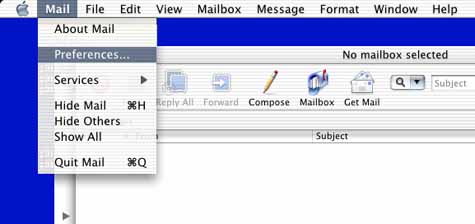
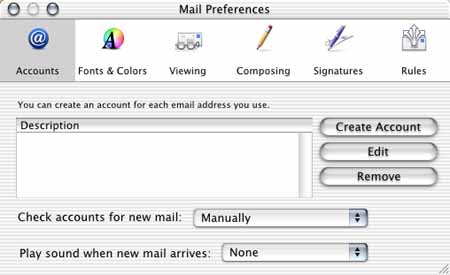
- highlight the mail account under .
- Click on .
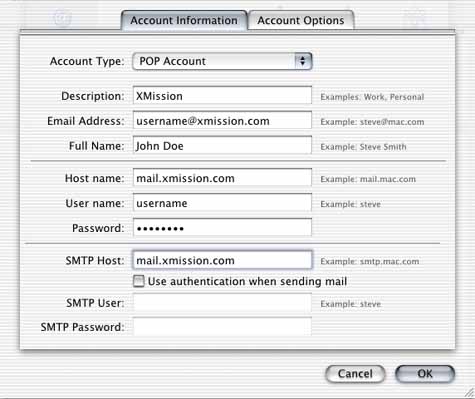
- Next to , select .
- In the field, enter XMission.
- In the field, enter your XMission email address.
- In the field, enter the name that you would like to appear on your outgoing messages. (e.g.: John Doe or Johnny D.)
- In the field, enter mail.xmission.com.
- In the field, enter your XMission username.
- In the password field, enter your XMission password.
- In the field, enter mail.xmission.com.
- Click on .