DSL Actiontec Password Update: Difference between revisions
Jump to navigation
Jump to search
No edit summary |
No edit summary |
||
| (One intermediate revision by the same user not shown) | |||
| Line 1: | Line 1: | ||
{{archived}} | |||
#Open a Web browser. (Such as Internet Explorer or Mozilla) | #Open a Web browser. (Such as Internet Explorer or Mozilla) | ||
#In the <span class="button">Addresss</span> bar enter <tt>http://192.168.0.1</tt>. | #In the <span class="button">Addresss</span> bar enter <tt>http://192.168.0.1</tt>. | ||
| Line 18: | Line 20: | ||
[[Category:DSL]] | [[Category:DSL]] | ||
[[Category:PPPoA]] | [[Category:PPPoA]] | ||
[[Category:Update]] | |||
Latest revision as of 13:46, 6 June 2019

- Open a Web browser. (Such as Internet Explorer or Mozilla)
- In the bar enter http://192.168.0.1.
- Select .
- Click .
- Older Actiontec firmwares say
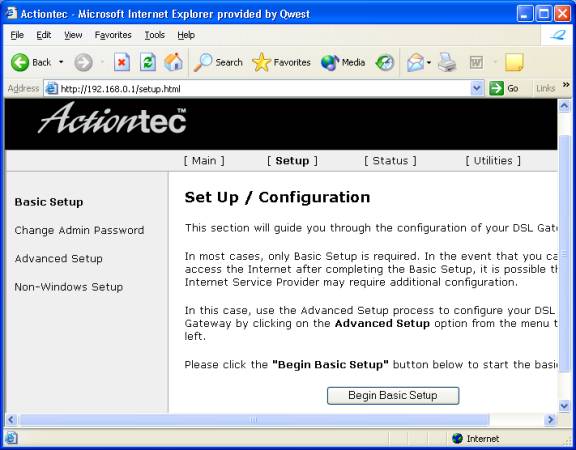
- Erase the contents of the field and enter your new password.
- Scroll to the bottom of the page and click .


At this point the configuration for your Actiontec is complete. Shortly after the Internet light on your Actiontec becomes solid you should be able to access the Internet.