TCP/IP for PPP Setup: Difference between revisions
Jump to navigation
Jump to search
m Protected "Dialup Archives:TCP/IP for PPP Setup" [edit=sysop:move=sysop] |
No edit summary |
||
| Line 1: | Line 1: | ||
#Click on the Apple menu, go to <span class="button">Control Panels</span>, and select <span class="button">TCP/IP</span>. | #Click on the Apple menu, go to <span class="button">Control Panels</span>, and select <span class="button">TCP/IP</span>. | ||
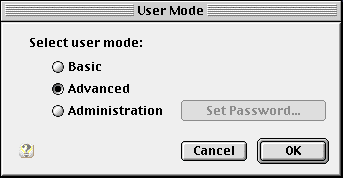
#Click <span class="button">Edit</span> and select <span class="button">User Mode</span>. | #Click <span class="button">Edit</span> and select <span class="button">User Mode</span>. | ||
#Select <span class="button">Advanced</span>. | #Select <span class="button">Advanced</span>. | ||
#Click <span class="button">Ok</span>. | #Click <span class="button">Ok</span>. | ||
#: | #[[Image:Mactcpip1.png]] | ||
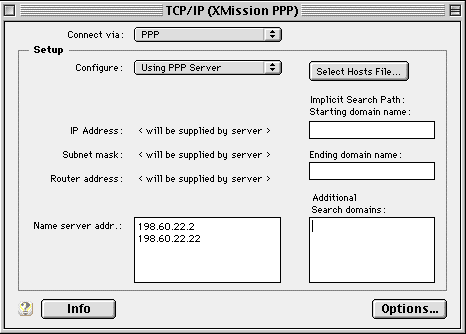
#Select <span class="button">PPP</span> from the drop-down menu beside <span class="button">Connect via:</span>. | #Select <span class="button">PPP</span> from the drop-down menu beside <span class="button">Connect via:</span>. | ||
#Select <span class="button">Using PPP server</span> from the drop-down menu beside <span class="button">Configure:</span>. | #Select <span class="button">Using PPP server</span> from the drop-down menu beside <span class="button">Configure:</span>. | ||
| Line 11: | Line 10: | ||
#:<tt>198.60.22.22</tt> | #:<tt>198.60.22.22</tt> | ||
#:<div class="messagebox metadata">'''Note''': Leave all other fields blank.</div> | #:<div class="messagebox metadata">'''Note''': Leave all other fields blank.</div> | ||
#: | #[[Image:Mactcpip2.png]] | ||
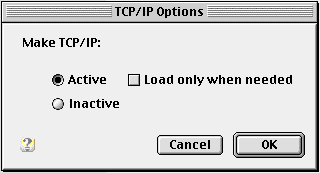
#Click <span class="button">Options</span>. | #Click <span class="button">Options</span>. | ||
#Select <span class="button">Active</span>. | #Select <span class="button">Active</span>. | ||
#Click <span class="button">Ok</span>. | #Click <span class="button">Ok</span>. | ||
#Close the TCP/IP control panel and save the changes when prompted. | #Close the TCP/IP control panel and save the changes when prompted. | ||
#: | #[[Image:Mactcpip3.png]] | ||
[[Category:Dialup Archives|TCP/IP for PPP]] | [[Category:Dialup Archives|TCP/IP for PPP]] | ||
Revision as of 12:29, 8 May 2009
- Click on the Apple menu, go to , and select .
- Click and select .
- Select .
- Click .
- Select from the drop-down menu beside .
- Select from the drop-down menu beside .
- In the field next to , enter...
- 198.60.22.2
- 198.60.22.22
- Click .
- Select .
- Click .
- Close the TCP/IP control panel and save the changes when prompted.