XMission App: Difference between revisions
Jump to navigation
Jump to search
Created page with "We have created a new App that will allow you to troubleshoot network related issues. Including wireless troubleshooting, network congestion, caching/streaming issues, and muc..." |
No edit summary |
||
| Line 1: | Line 1: | ||
We have created a new App that will allow you | We have created a new mobile App that will allow you and XMission Support in troubleshooting your home network. Including wireless troubleshooting, network congestion, caching/streaming issues, and much more. Using our XMission App you'll be able to increase Wireless Performance and resolve common issues. | ||
This app | This app runs a quick two minute network diagnostic that collects simple data such as Internet Speed and Network Health. It also allows you to upload Photo's, Video's and give a XMission Support Member access to your router with just a few clicks on your mobile device. Our App is available on both [http://getrt.co/xmission Android and iOS] | ||
== How to perform a Network Scan == | |||
* Once installed, launch the app – If the app asks for permission to access your location please allow it. This enables the app to gather information about the ambient wifi network. | |||
*; | |||
*;[[File:Allow Access.png|200px]] | |||
*; ''NOTE'' The XMission App '''does not''' record GPS coordinates, this allows us to gain permission for WiFi Information only. | |||
*; | |||
* You'll be asked to place your device next to your router or in the area of your home you are experiencing wireless issues. | |||
*; | |||
*;[[File:Device Placement.png|200px]] | |||
* Tap ‘Yes’ on the screen asking if you have moved your device to the correct location | |||
*; | |||
* Allow the tests to complete, this normally takes up to 2 minutes, however, it could be longer on older devices | |||
*; | |||
*; [[File:Network Discovery.png|200px]] | |||
*; ''NOTE'' Please do not minimize or close out of the app during this step. | |||
*; | |||
* Once the network scan is completed you'll be shown a result screen that will advise you of your current network health: | |||
*; | |||
*; [[File:Network HealthGood.png|200px]] [[File:Network HealthBad.png|200px]] | |||
== What to do with your Network Scan == | |||
Revision as of 15:45, 12 September 2019
We have created a new mobile App that will allow you and XMission Support in troubleshooting your home network. Including wireless troubleshooting, network congestion, caching/streaming issues, and much more. Using our XMission App you'll be able to increase Wireless Performance and resolve common issues.
This app runs a quick two minute network diagnostic that collects simple data such as Internet Speed and Network Health. It also allows you to upload Photo's, Video's and give a XMission Support Member access to your router with just a few clicks on your mobile device. Our App is available on both Android and iOS
How to perform a Network Scan
- Once installed, launch the app – If the app asks for permission to access your location please allow it. This enables the app to gather information about the ambient wifi network.
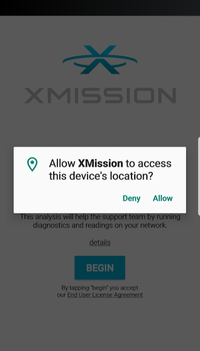
- NOTE The XMission App does not record GPS coordinates, this allows us to gain permission for WiFi Information only.
- You'll be asked to place your device next to your router or in the area of your home you are experiencing wireless issues.
- Tap ‘Yes’ on the screen asking if you have moved your device to the correct location
- Allow the tests to complete, this normally takes up to 2 minutes, however, it could be longer on older devices
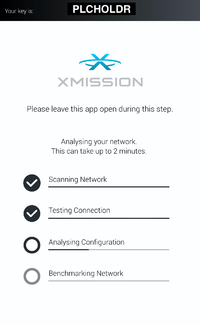
- NOTE Please do not minimize or close out of the app during this step.
- Once the network scan is completed you'll be shown a result screen that will advise you of your current network health:


