IRM Webmail
Welcome to the iRedMail webmail interface, home to your XMission email. If you're being hosted on our Zimbra servers, please be advised this page will not contain information for that system.
Login Page
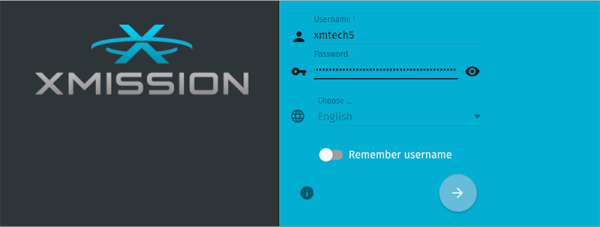
Here is the login page.
Mail Overview
After Login you will see the following:
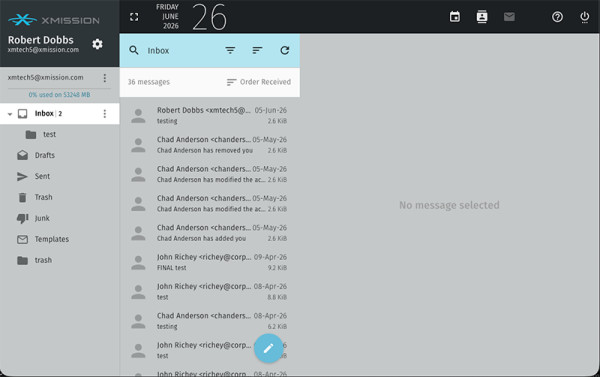
Starting along the top you'll see:
- The current date
- Icons to move the view to
- Calendar
- Address Book
- Mailbox
- Help
- Log Out
Mail Window Overview
 |
 |
|
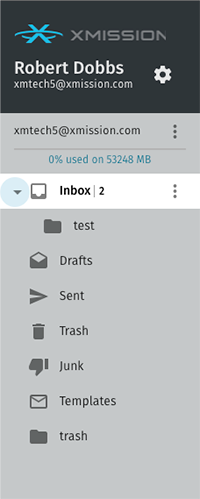
| Inbox and mail folders |
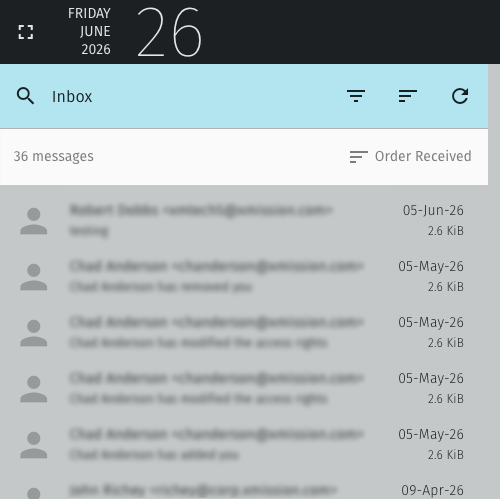
List of all your emails. By default they are ordered by newest to oldest. |
This is your email reading pane.
|
The three dots next to your Inbox will open a menu:
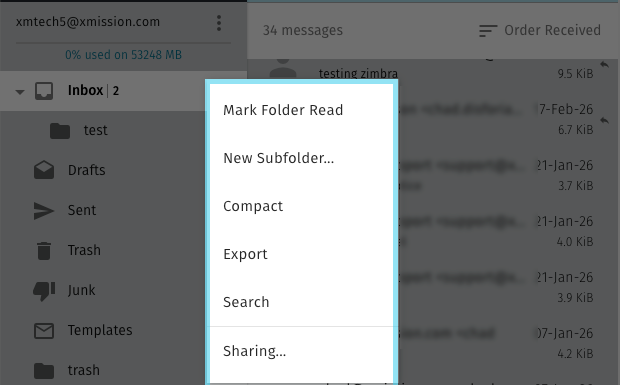
- Mark Folder Read - Mark all emails in this folder as read
- New Subfolder - Create a new subfolder
- Compact - Compact the folder
- Export - Export your Inbox
- Search - Allows you to search in that folder.
- Sharing - Allows you to share that folder with various permissions.
- Move To > - This only appears on a sub folder
NOTE: The three dots will appear on every folder you click on giving you the ability for each of those tasks.
Preferences
General preferences
|
|
|
|
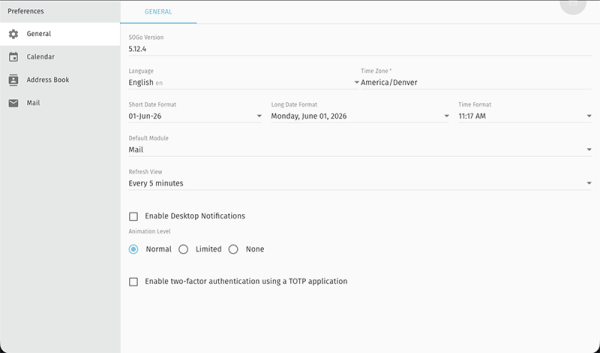
- SOGo Version (webmail version)
- Language (for interface)
- Time Zone
- Short Date Format
- Long Date Format
- Time Format
- Default Module (the interface it will show upon login)
- Enable Desktop Notifications
- Animation Level
- Enable 2FA (two-factor authentication) using a TOTP application
|
Calendar Preferences
|
|
|
|
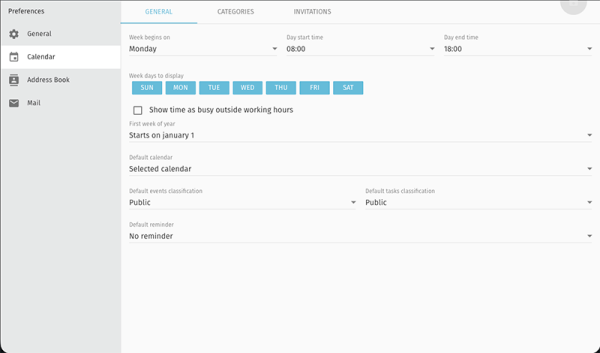
- Week Begins On
- Day Start Time
- Day End Time
- Weekdays to Display
- First Week of the Year
- Default Calendar
- Default Events Classification
- Default Tasks Classification
- Default Reminder
|
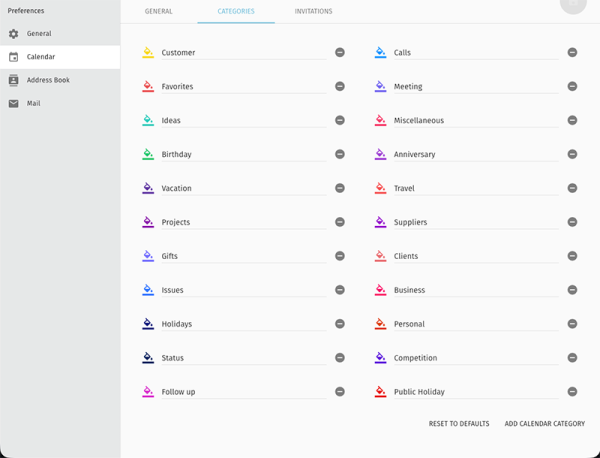
Categories
|
|
|
|
- Create categories for your calendar that will allow you to organize and color code specific event type within your individual calendar.
|
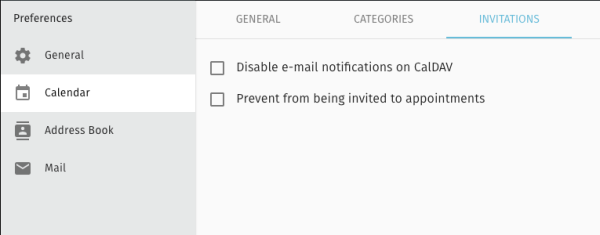
Invitations
|
|
|
|
- Enable or disable email notifications on CalDAV
- Enable/disable the ability to be invited to appointments
|
Address Book
|
|
|
|
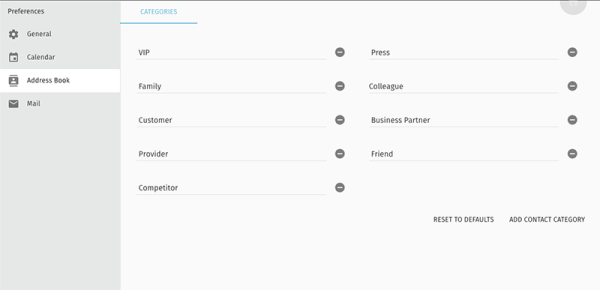
- Here you can se up specific categories for your address book.
- To setup your address book click here.
|
Mail
General
|
|
|
|
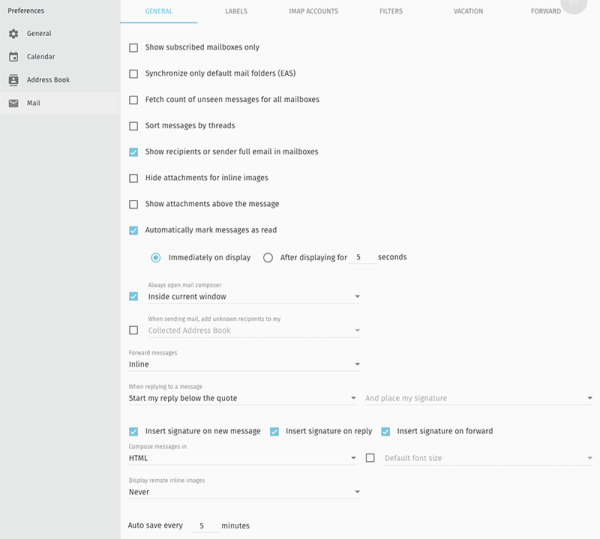
- Show Subscribed Mailboxes Only
- Synchronize Only Default Mail Folders
- Fetch Count of Unseen Messages for All Mailboxes
- Sort Messages by Threads
- Show Recipients or Sender Full Email in Mailboxes
- Hide Attachments for Inline Images
- Show Attachments for Inline Images
- Automatically Mark Messages as Read (immediately on display or after displaying for X seconds)
- Enable/Disable Always Open Mail Composer (inside current window or in a pop-up window)
- Enable/Disable When Sending Mail, Add Unknown Recipients to (address book of choice)
- Forward Messages (inline or as an attachment)
- When Replying to a Message (start reply below the quote or start reply above the quote) and Place my Signature (below my reply or below the quote)
- Enable/Disable Insert Signature on New Message
- Enable/Disable Insert Signature on Reply
- Enable/Disable Insert Signature on Forward
- Compose Messages in (HTML or Plaintext) and Enable/Disable Default Font Size
- Display Remote Inline Imagines (Never or Always)
- Auto Save Every X Minutes
|
Labels
|
|
|
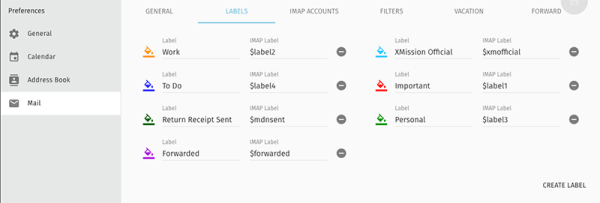
|
- You'll be able to set up specific labels for emails as you desire for color coding or otherwise labeling your emails for organizational purposes.
|
IMAP Accounts
|
|
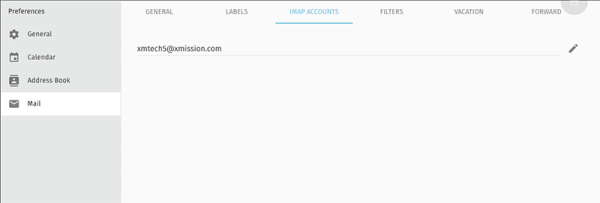
|
- Under the IMAP Accounts category, you'll be able to edit the individual personas you've made for the account.
|
|
|
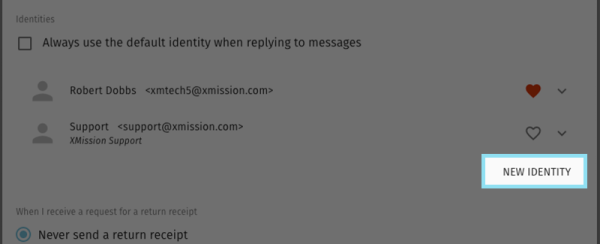
|
- Clicking on New Identity will allow you to create a new identity
|
|
|
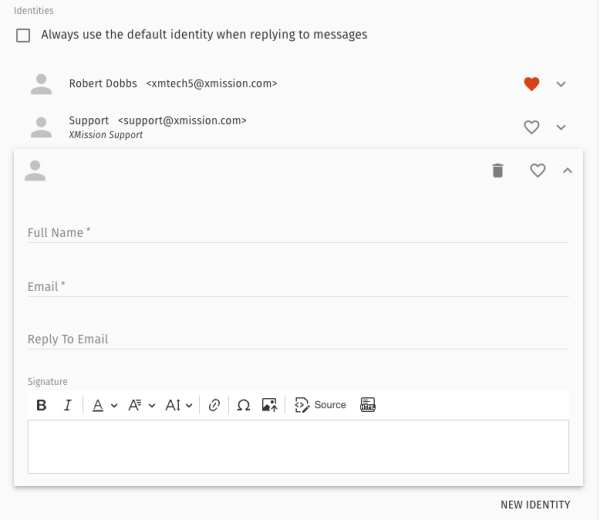
|
- Add a full name
- Add the email address
- Add a Reply to email address
- Add a signature
- Clicking the trash can will delete this identity
- Clicking the heart will make this identity default
|
Filters
|
|
|
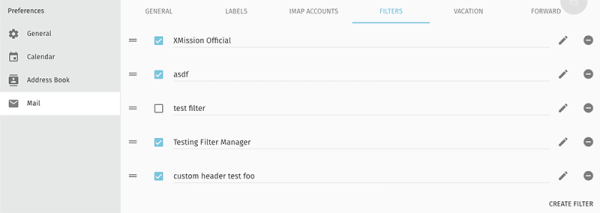
- Filters will allow you to organize your filter rules, edit your current filters and create new one.
- To create a new filter choose the Create Filter Button
|
|
|
|
|
|
|
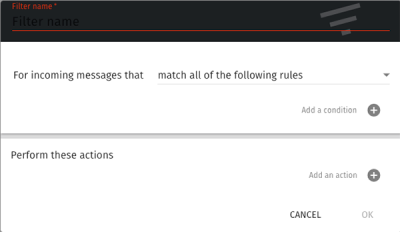
- This opens the create filter form.
|
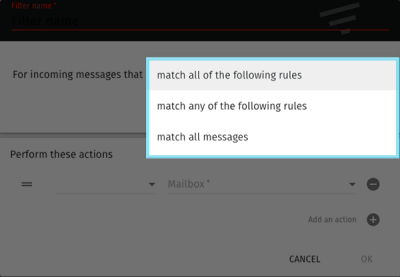
- Choose the Option that fits you best.
|
|
|
|
|
|
|
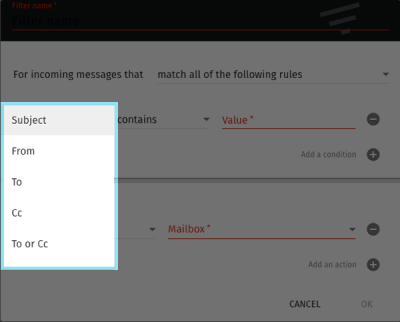
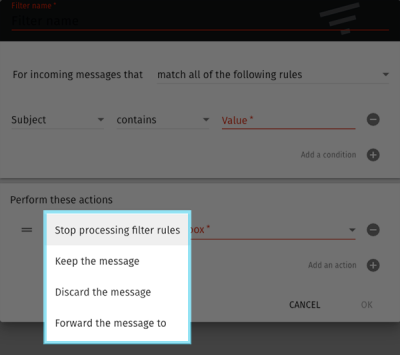
- Choose which action you want to perform
|
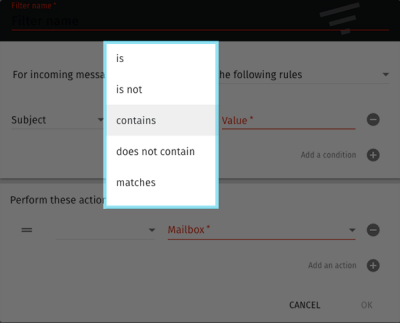
- Choose your contains actions then enter a value
|
|
|
|
|
|
|
- Finally choose when you want this filter to run
|
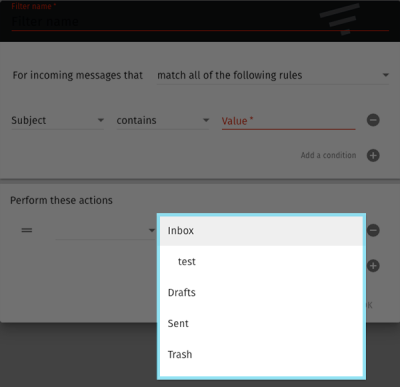
- Choose where you want to put that email when the filer rule runs
|
Vacation
|
|
|
|
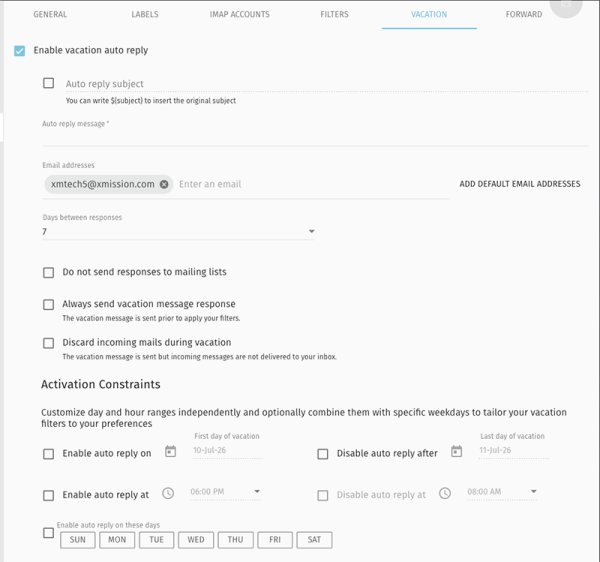
- Enable/Disable Autoreply Subject
- Autoreply Message
- Email Addresses On Vacation Reply Mode
- Days Between Responses
- Enable/Disable Do Not Send Responses to Mailing Lists
- Enable/Disable Always Send Vacation Message Response
- Enable/Disable Discard Incoming Emails During Vacation
You can also set up restrictions and constraints just in case you only want that mode activated on specific days you're away, such as:
- Enable/Disable Enable Autoreply On (date) and Disable Autoreply After (date)
- Enable/Disable Enable Autoreply At (time) and Disable Autoreply At (time)
- Enable/Disable Autoreply on These Days
|
Forward
|
|
|
|
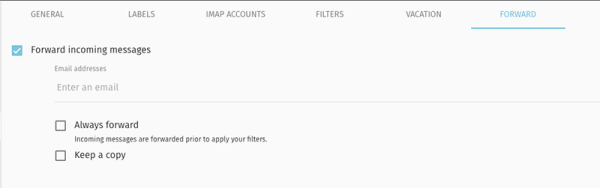
- Under Forward you can set up email forwarding for incoming messages.
- Email Addresses (that you plan to forward to)
- Enable/Disable Always Forward (this applies before any filter rules)
- Enable/Disable Keep a Copy
|
Reading Email
|
|
|

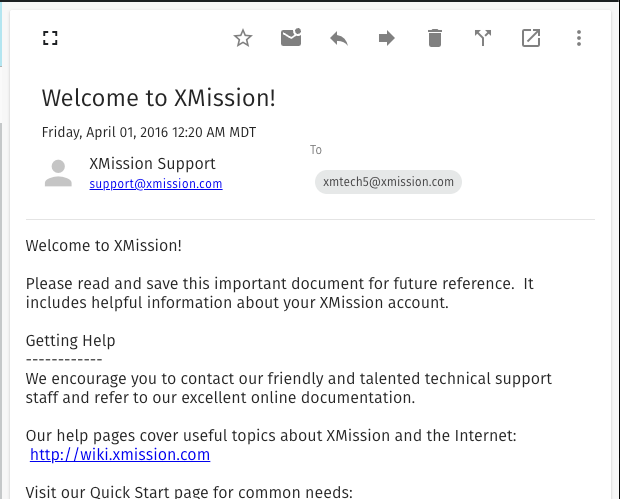
- When viewing an email, you'll have the following options along the top-right side:
-
Flag
-
Mark Unread
-
Junk
-
Reply to Sender
-
Forward Email
-
Delete Email
-
Move to new Folder
-
Open New Window
|
|
|
 The 3 Dots at the end will open the following The 3 Dots at the end will open the following
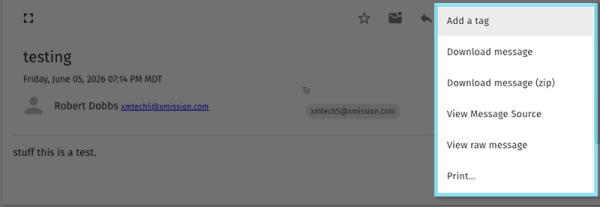
- Add a Tag
- Download Message
- Download Message (as a .zip file)
- View Message Source
- View Raw Message
- Print
- Convert to Event
- Convert to Task
|


