Netscape 7 Setup: Difference between revisions
Jump to navigation
Jump to search
No edit summary |
No edit summary |
||
| Line 1: | Line 1: | ||
{{archived}} | |||
#Open Netscape 7 Mail. Click the <span class="button">Edit</span> menu at the top, then select <span class="button">Mail & Newsgroups Account Settings</span>. | #Open Netscape 7 Mail. Click the <span class="button">Edit</span> menu at the top, then select <span class="button">Mail & Newsgroups Account Settings</span>. | ||
#[[Image:Winns701.png]] | #[[Image:Winns701.png]] | ||
Latest revision as of 14:51, 14 January 2020

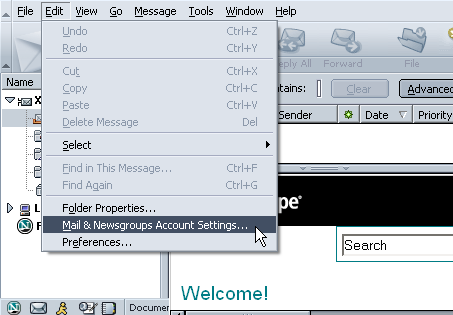
- Open Netscape 7 Mail. Click the menu at the top, then select .
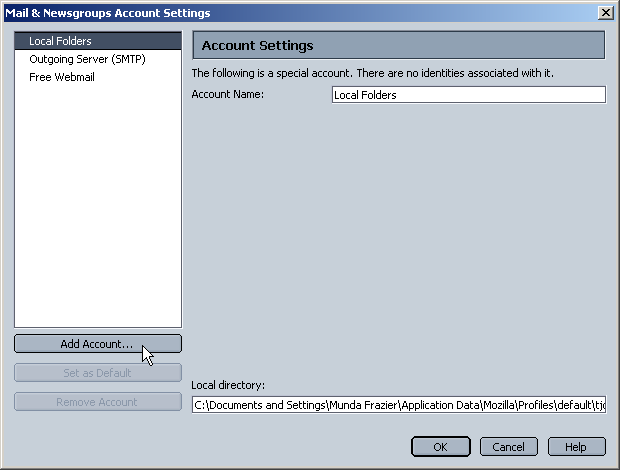
- Click the button to begin setting up your XMission account.
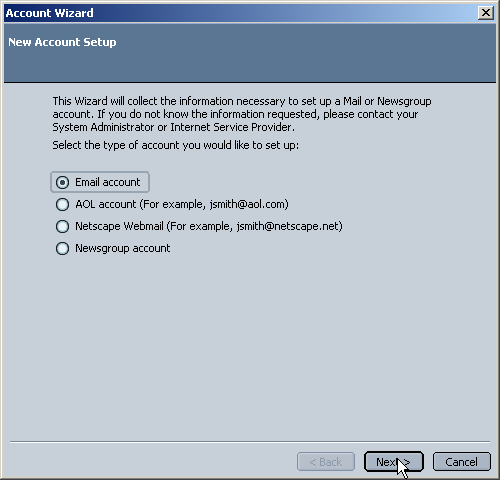
- Select the option, then click
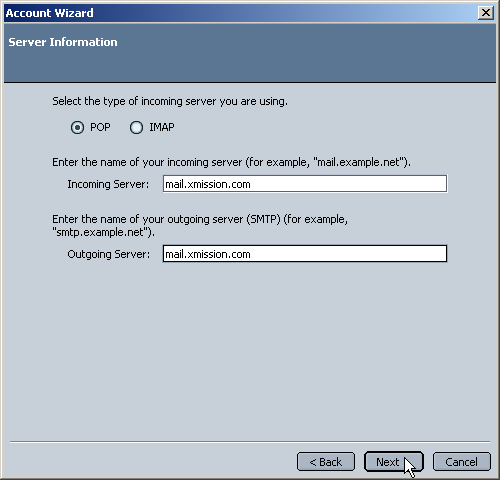
- Select for the incoming server option. In the spaces provided for and type as shown in the picture below, then click .
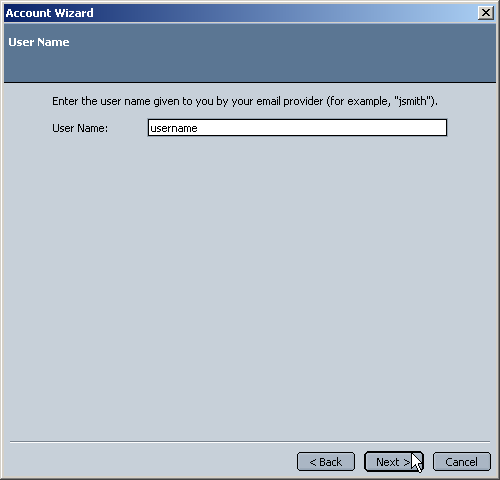
- Enter your XMission user name, then click .
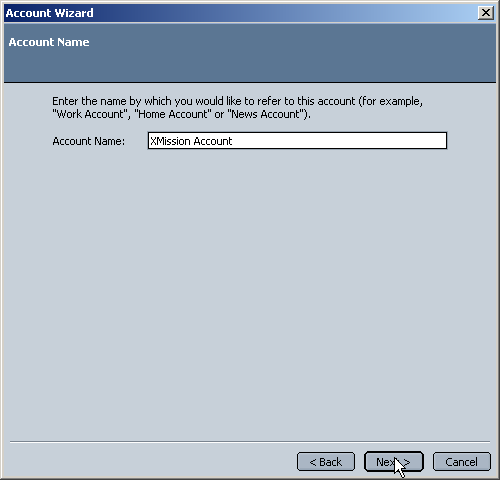
- Enter a name by which you will identify this account in Netscape, something like or your email address is recommended, then click .
- Take a look at this page and verify that you havenít made any spelling errors or other typos, if everything looks correct, click to complete the setup process.
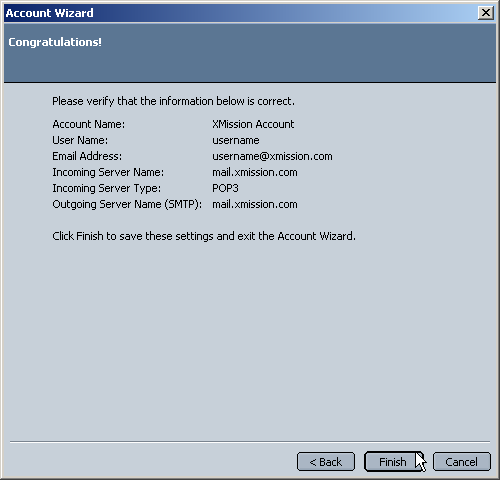


You have successfully configured Netscape to check your XMission email account.