XMission E-Fax Services: Difference between revisions
No edit summary |
|||
| Line 1: | Line 1: | ||
<H2> **XMission E-Fax Solution is an add-on service that requires users to subscribe to additional paid services to access this feature. </h2> | |||
XMission offers E-Fax Solutions to both our Residential and Business Customers. For our Residential subscribers, adding E-Fax to your XMission Services is the only way to guarantee Fax service with XMission. As we do not support or guarantee Physical Faxing on our VoIP Product. | |||
Our E-Fax enables users to transmit faxes through the following channels: | Our E-Fax enables users to transmit faxes through the following channels: | ||
* Email services (e.g., Zimbra, Gmail, Outlook, Thunderbird, Mac Mail, etc.). | |||
* XMission’s online portal (https://call.xmission.com). | * XMission’s online portal (https://call.xmission.com). | ||
To incorporate E-Fax into your XMission Voice services, kindly contact our sales department for registration | To incorporate E-Fax into your XMission Voice services, kindly contact our sales department for registration. | ||
== Send from Email == | |||
In order to send faxes via email XMission will need to authorize email address. XMission does encourage that we only authorized 1 address, however we can add up to three email addresses. | |||
''** if multiple users require access to sending faxes, we recommend creating an outgoing distribution list called fax@yourdomain.com.'' | |||
To send faxes via Email: | |||
# Open your email service | |||
# Click to compose or start a new email | |||
# The “To:” address should be formatted as follows: <phonenumber sending to>@fax.io. | |||
#: '''For example:''' 18019871234@fax.io. | |||
# To include a cover letter, enter the “Fax Subject” in your email platform’s “Subject Box.” | |||
#: Any additional content for the cover letter should be typed into the email body.. | |||
#: [[File:e-fax email send.png|600px]] | |||
# If you do not wish to add a cover letter: | |||
#: Leave the "Subject Box" in your Email Platform blank. | |||
# If the subject filed is left blank, any content entered into the email body will be treated as your fax document. | |||
#; Attachments will be ignored. | |||
# To fax pre-paired documents, simply attach them to the email.. | |||
* Please NOTE The system will accept .pdf, .doc, .docx, .jpg, .png, .tif, .odt, .txt files ONLY. | |||
== Send from Portal == | == Send from Portal == | ||
| Line 22: | Line 46: | ||
* You are able to add a SINGLE file only. So if you have to fax multiple pages, it will be required to scan or combine those pages into a single file. | * You are able to add a SINGLE file only. So if you have to fax multiple pages, it will be required to scan or combine those pages into a single file. | ||
* The system will accept .pdf, .doc, .docx, .jpg, .png, .tif, .odt, .txt files ONLY. | * The system will accept .pdf, .doc, .docx, .jpg, .png, .tif, .odt, .txt files ONLY. | ||
[[Category:Voice Troubleshooting]] | [[Category:Voice Troubleshooting]] | ||
[[Category:VoIP]] | [[Category:VoIP]] | ||
Revision as of 09:43, 17 March 2026
**XMission E-Fax Solution is an add-on service that requires users to subscribe to additional paid services to access this feature.
XMission offers E-Fax Solutions to both our Residential and Business Customers. For our Residential subscribers, adding E-Fax to your XMission Services is the only way to guarantee Fax service with XMission. As we do not support or guarantee Physical Faxing on our VoIP Product.
Our E-Fax enables users to transmit faxes through the following channels:
- Email services (e.g., Zimbra, Gmail, Outlook, Thunderbird, Mac Mail, etc.).
- XMission’s online portal (https://call.xmission.com).
To incorporate E-Fax into your XMission Voice services, kindly contact our sales department for registration.
Send from Email
In order to send faxes via email XMission will need to authorize email address. XMission does encourage that we only authorized 1 address, however we can add up to three email addresses. ** if multiple users require access to sending faxes, we recommend creating an outgoing distribution list called fax@yourdomain.com.
To send faxes via Email:
- Open your email service
- Click to compose or start a new email
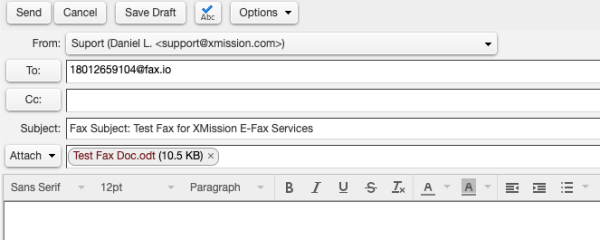
- The “To:” address should be formatted as follows: <phonenumber sending to>@fax.io.
- For example: 18019871234@fax.io.
- To include a cover letter, enter the “Fax Subject” in your email platform’s “Subject Box.”
- Any additional content for the cover letter should be typed into the email body..
- If you do not wish to add a cover letter:
- Leave the "Subject Box" in your Email Platform blank.
- If the subject filed is left blank, any content entered into the email body will be treated as your fax document.
- Attachments will be ignored.
- To fax pre-paired documents, simply attach them to the email..

* Please NOTE The system will accept .pdf, .doc, .docx, .jpg, .png, .tif, .odt, .txt files ONLY.
Send from Portal
To send a fax from the online portal, users will need to log into call.xm.
- Click on "Fax" Button.
- Click "Send Fax".
- Click "Browse" button and locate file from the local machine(Computer).
- Leave the CallerID dropdown alone. (Unless you have multiple Fax Number with XMission)
- Type in the Phone Number for the destination.
- Check optional box "Add Cover Letter"
- Using Cover Letter - Fill in all optional fields.
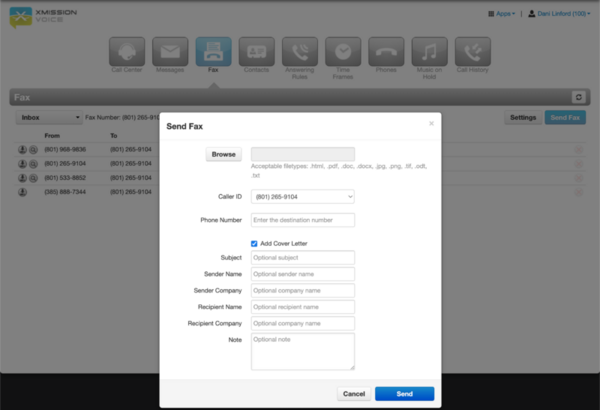
- Click "Send".

- You are able to add a SINGLE file only. So if you have to fax multiple pages, it will be required to scan or combine those pages into a single file.
- The system will accept .pdf, .doc, .docx, .jpg, .png, .tif, .odt, .txt files ONLY.